Prerequisites
Before you begin, please ensure:- ChatBox is installed Download and install the version suitable for your operating system from ChatBox GitHub or visit ChatBox Official Website
-
APIMart API Key obtained
Log in to APIMart Console to get your API key (starts with
sk-)
Tip: If you don’t have an APIMart account yet, please register at APIMart and obtain an API key first.
Step 1: Launch ChatBox and Start Configuration
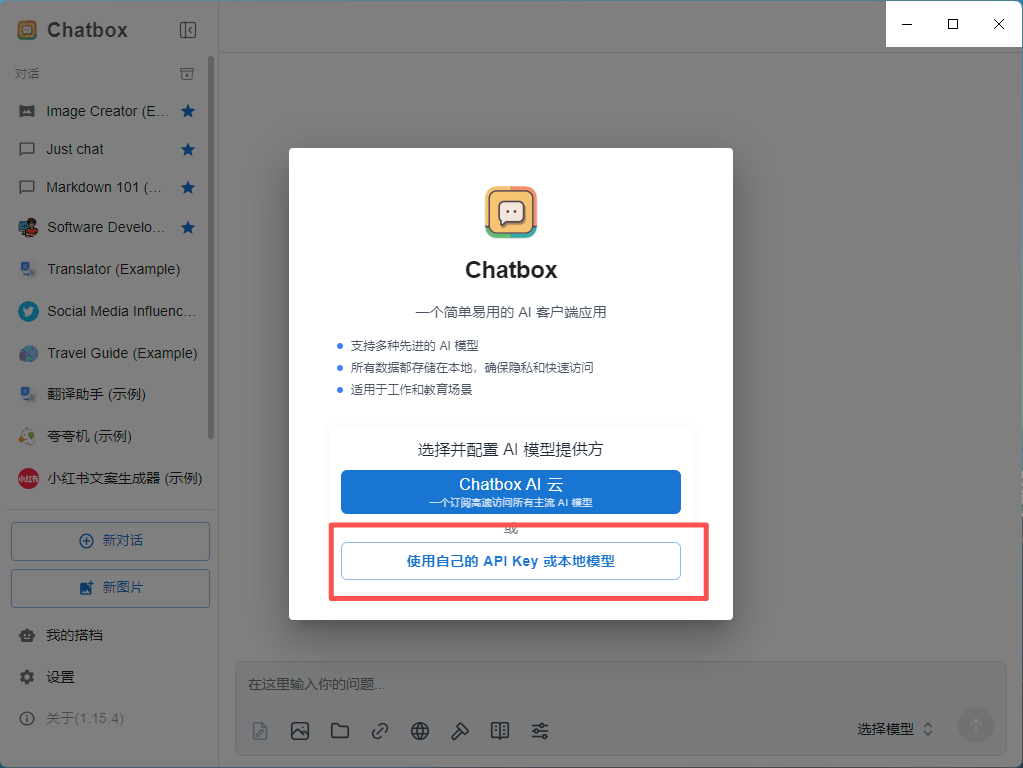
When launching ChatBox for the first time or adding a new AI provider:- Launch the ChatBox application
- If it’s your first time, a configuration wizard will appear automatically
- Click the “Use your own API Key or local model” button
- If already configured, click the ⚙️ Settings icon in the bottom left corner, or use the shortcut
Ctrl+,(Windows/Linux) /Cmd+,(macOS)
Step 2: Configure APIMart API
2.1 Select AI Model Provider
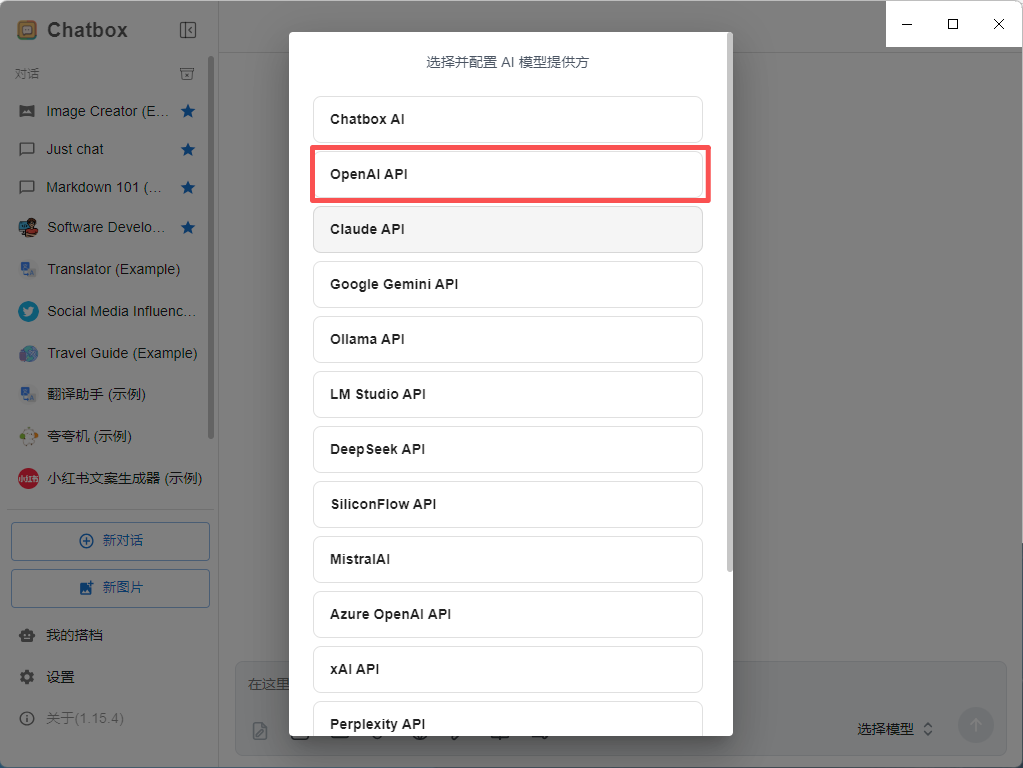
In the settings page:- Find the AI Provider setting
- Select OpenAI API (for GPT series models), Claude API (for Claude series models), or Gemini API (for Gemini series models) from the dropdown menu
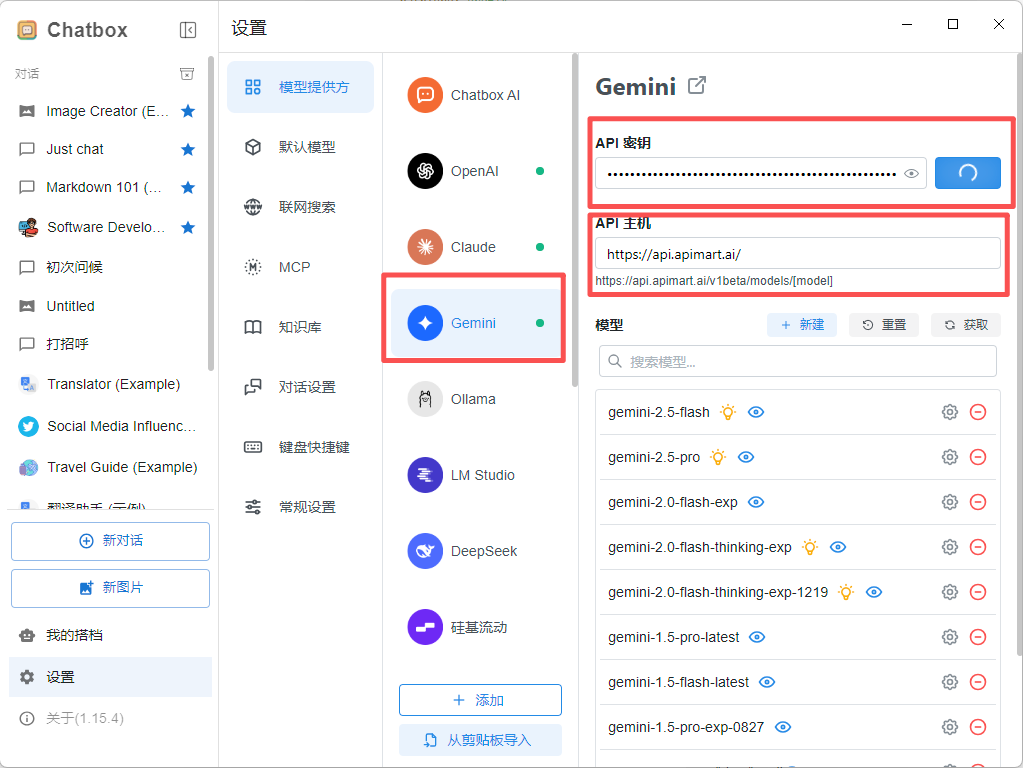
2.2 Configure API Information
After selecting OpenAI API, fill in the following configuration: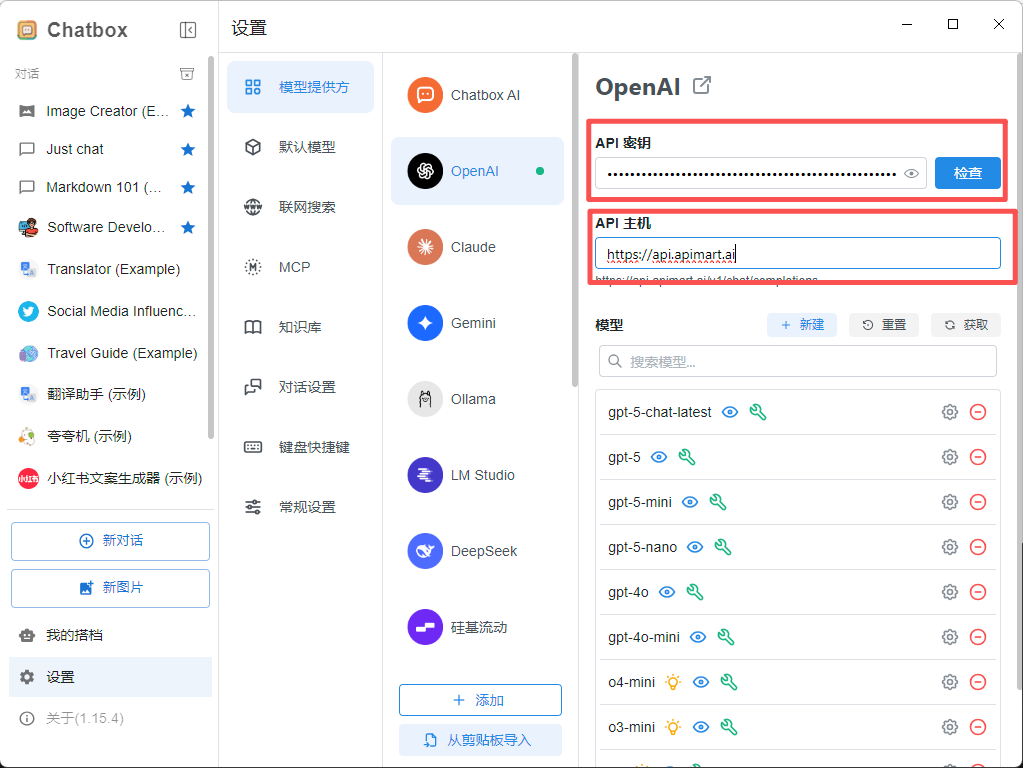
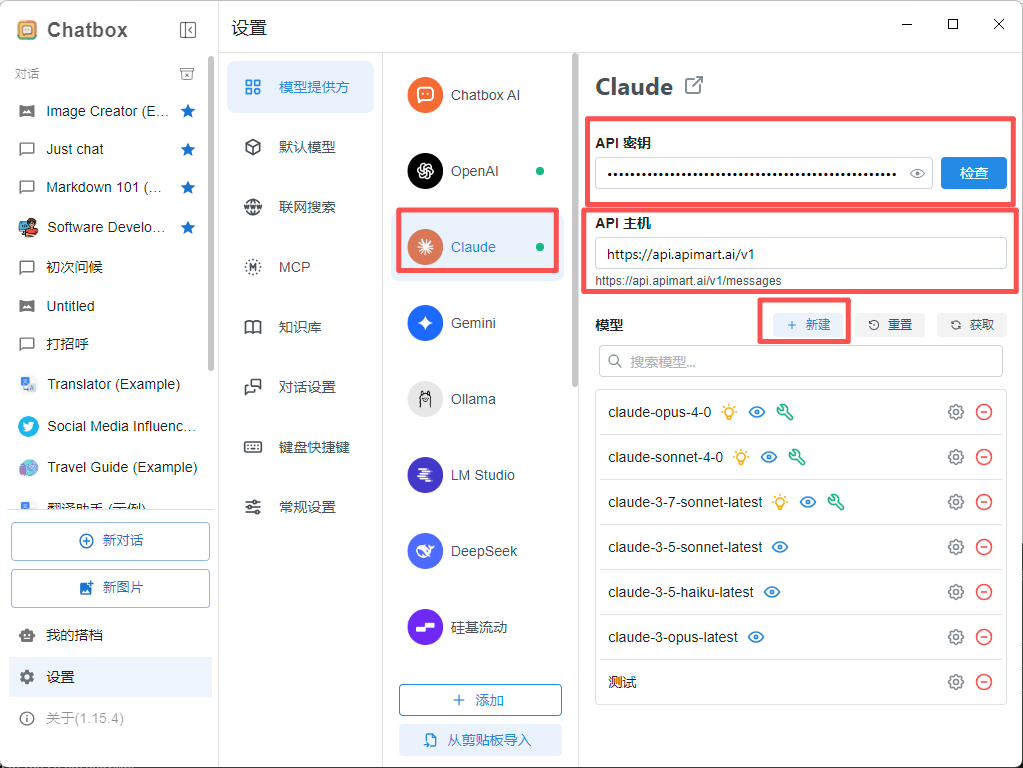
2.3 Select Model
After configuration, select the model you want to use from the Model dropdown: Recommended Models:Step 3: Start Using
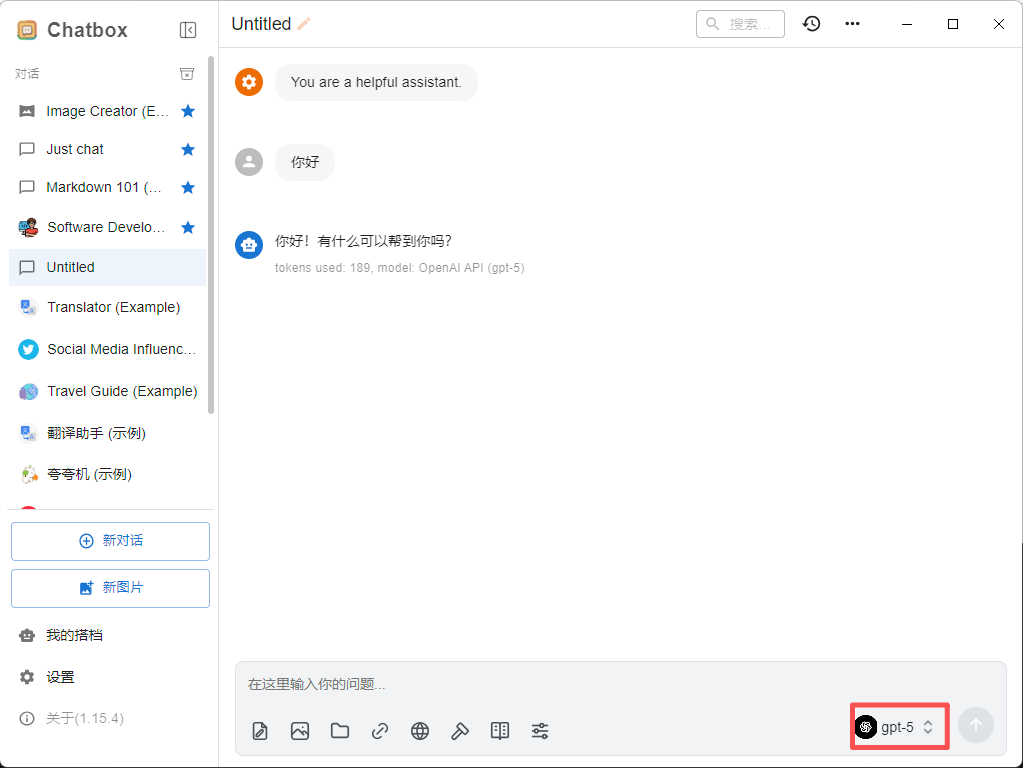
After configuration, you can start using ChatBox to chat with AI:- Return to the main interface
- Type your question or requirement in the input box
- Press
Enteror click the send button - AI will generate a reply using APIMart’s models
Adjust Model Parameters (Optional)
You can adjust the following parameters as needed:Advanced Features
Multi-Session Management
ChatBox supports creating multiple conversation sessions:- Click the New Chat button
- Create independent sessions for different tasks
- Switch between conversations in the left session list
Save and Export Conversations
- Right-click on a conversation session
- Select Export option
- Export as Markdown, JSON, or other formats
Using Prompt Templates
- Find Prompts settings in the settings menu
- Save commonly used prompt templates
- Quickly invoke preset prompts in conversations
FAQ
Q1: Cannot connect to APIMart service?
Solution:-
Check API Host:
- Ensure it’s
https://api.apimart.ai - Don’t add
/v1or other paths
- Ensure it’s
-
Verify API Key:
- Confirm API Key starts with
sk- - Check if the key is valid in APIMart Console
- Confirm API Key starts with
-
Check Network Connection:
- Ensure you can access
https://api.apimart.ai - You may need to configure a proxy if in China
- Ensure you can access
Q2: APIMart models not showing in model list?
Solution:-
Manually Enter Model Name:
- Directly type the model ID in the model input box
- For example:
gpt-4o,gpt-4o-mini,claude-sonnet-4-5-20250929
-
Refresh Model List:
- Restart ChatBox application
- Reconfigure API information
Q3: Error messages during conversation?
Common errors and solutions:Q4: How to view API usage and costs?
Log in to APIMart Console to view:- 📊 API call statistics
- 💰 Cost details
- 📈 Usage trend charts
- 🔍 Detailed request logs
Q5: Which platforms does ChatBox support?
ChatBox supports multiple platforms:- 🪟 Windows - Windows 10/11
- 🍎 macOS - macOS 10.15+
- 🐧 Linux - Major distributions
- 🌐 Web - Browser version
Usage Tips
1. Keyboard Shortcuts
Utilize ChatBox keyboard shortcuts for efficiency:2. Optimize Prompts
Write better prompts for better responses: ❌ Poor Prompt:3. Leverage Conversation History
ChatBox saves conversation history:- AI remembers context from the current session
- Can continue asking based on previous responses
- Suitable for deep discussions and iterations
4. Switch Models
Switch to appropriate models for different tasks:- Writing tasks - Use
gpt-4oorclaude-sonnet-4-5 - Coding tasks - Use
claude-sonnet-4-5 - Quick Q&A - Use
gpt-4o-mini - Multimodal - Use
gemini-2.0-flash-exp
Features
Using ChatBox + APIMart, you can:- 💬 Smooth Conversations - Real-time streaming output for smoother experience
- 🎯 Multi-Session Management - Manage multiple independent conversations simultaneously
- 💾 Local Storage - Conversation records saved locally to protect privacy
- 📤 Export Conversations - Support exporting in multiple formats
- 🎨 Clean Interface - Simple and beautiful user interface
- 🔒 Open Source & Free - Completely open source and free to use
- 🌍 Cross-Platform - Supports Windows, macOS, Linux
- 🚀 Excellent Performance - Lightweight application, runs smoothly
Support & Help
If you encounter any issues:- 📚 APIMart Documentation
- 📚 ChatBox GitHub
- 💬 Discord Community
- 🐦 Twitter @APIMart_
- 📧 Technical Support: zhihong@apimart.ai
Start Using APIMart
Register for APIMart now, get your API key, and start your AI journey in ChatBox!