> ## Documentation Index
> Fetch the complete documentation index at: https://docs.apimart.ai/llms.txt
> Use this file to discover all available pages before exploring further.
# Using APIMart in Immersive Translate
> Detailed guide on how to configure and use APIMart API service in the Immersive Translate browser extension. This guide will help you set up APIMart API in Immersive Translate for high-quality AI translation services.
## Prerequisites
Before you begin, please ensure:
1. **Immersive Translate Extension Installed**
Install Immersive Translate from:
* [Chrome Web Store](https://chrome.google.com/webstore/detail/immersive-translate/bpoadfkcbjbfhfodiogcnhhhpibjhbnh)
* [Edge Add-ons](https://microsoftedge.microsoft.com/addons/detail/immersive-translate/amkbmndfnliijdhojkpoglbnaaahippg)
* [Firefox Add-ons](https://addons.mozilla.org/firefox/addon/immersive-translate/)
* [Official Website](https://immersivetranslate.com/)
2. **APIMart API Key Obtained**
Login to [APIMart Console](https://apimart.ai/keys) to get your API key (starts with `sk-`)
**Tip:** If you don't have an APIMart account yet, please register at [APIMart](https://apimart.ai) and obtain an API key first.
## Step 1: Open Extension Settings
After installing the Immersive Translate extension:
1. Click the **Immersive Translate** icon in your browser toolbar
2. At the bottom of the popup panel, click the **Settings** button in the lower left corner
3. Enter the Immersive Translate settings page
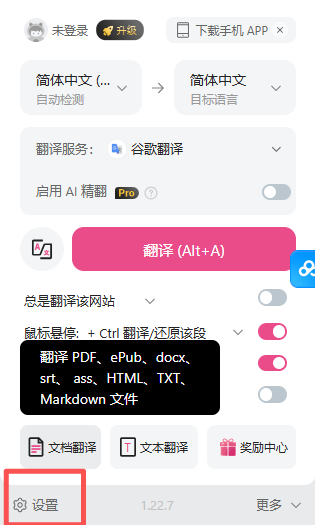 *Click the Immersive Translate icon in the browser toolbar, then click the "Settings" button at the bottom left*
## Step 2: Configure Translation Service
### 2.1 Enter Translation Service Settings
On the settings page:
1. Find the **"Translation Services"** option in the left menu
2. Click to enter the translation service configuration page
*Click the Immersive Translate icon in the browser toolbar, then click the "Settings" button at the bottom left*
## Step 2: Configure Translation Service
### 2.1 Enter Translation Service Settings
On the settings page:
1. Find the **"Translation Services"** option in the left menu
2. Click to enter the translation service configuration page
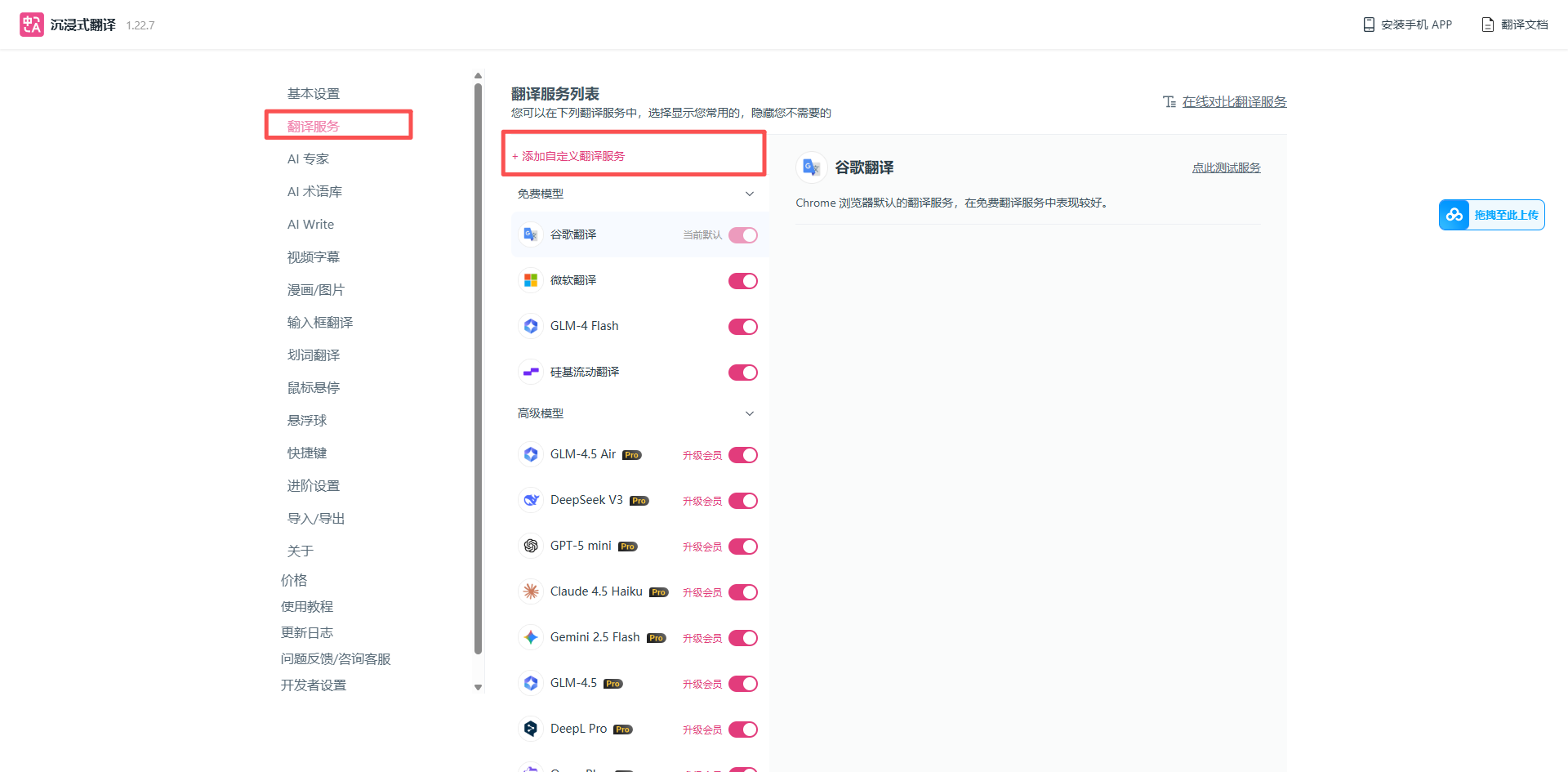 *Find the "Translation Services" option in the settings page*
### 2.2 Add Custom Translation Service
On the translation services list page:
1. Click the **+ Add Custom Translation Service** button at the top
2. Fill in APIMart API information in the configuration form
**Tip:** Immersive Translate supports adding OpenAI-compatible custom translation services, and APIMart is fully compatible with this format.
### 2.3 Configure APIMart API Information
Fill in the following configuration information:
| Configuration | Value | Description |
| ----------------------------------- | -------------------------------------------- | ------------------------------------------ |
| **Custom Translation Service Name** | `APIMart` | Customizable, for easy identification |
| **APIKEY** | `sk-xxxxxxxxxxxx` | Your APIMart API key |
| **Model** | `gpt-4o-mini` or others | Select from dropdown list |
| **Custom API Endpoint** | `https://api.apimart.ai/v1/chat/completions` | Complete API endpoint address |
| **Max Requests Per Second** | `5` | Control request frequency, recommended 3-5 |
**Configuration Notes:**
* **APIKEY**: Must be obtained from [APIMart Console](https://apimart.ai/keys) and start with `sk-`
* **API Endpoint**: Must use the complete path `https://api.apimart.ai/v1/chat/completions`
* **Model Selection**: Recommend `gpt-4o-mini` (cost-effective) or `gpt-5` (best quality)
* **Request Frequency**: Setting to 5 balances speed and stability
*Find the "Translation Services" option in the settings page*
### 2.2 Add Custom Translation Service
On the translation services list page:
1. Click the **+ Add Custom Translation Service** button at the top
2. Fill in APIMart API information in the configuration form
**Tip:** Immersive Translate supports adding OpenAI-compatible custom translation services, and APIMart is fully compatible with this format.
### 2.3 Configure APIMart API Information
Fill in the following configuration information:
| Configuration | Value | Description |
| ----------------------------------- | -------------------------------------------- | ------------------------------------------ |
| **Custom Translation Service Name** | `APIMart` | Customizable, for easy identification |
| **APIKEY** | `sk-xxxxxxxxxxxx` | Your APIMart API key |
| **Model** | `gpt-4o-mini` or others | Select from dropdown list |
| **Custom API Endpoint** | `https://api.apimart.ai/v1/chat/completions` | Complete API endpoint address |
| **Max Requests Per Second** | `5` | Control request frequency, recommended 3-5 |
**Configuration Notes:**
* **APIKEY**: Must be obtained from [APIMart Console](https://apimart.ai/keys) and start with `sk-`
* **API Endpoint**: Must use the complete path `https://api.apimart.ai/v1/chat/completions`
* **Model Selection**: Recommend `gpt-4o-mini` (cost-effective) or `gpt-5` (best quality)
* **Request Frequency**: Setting to 5 balances speed and stability
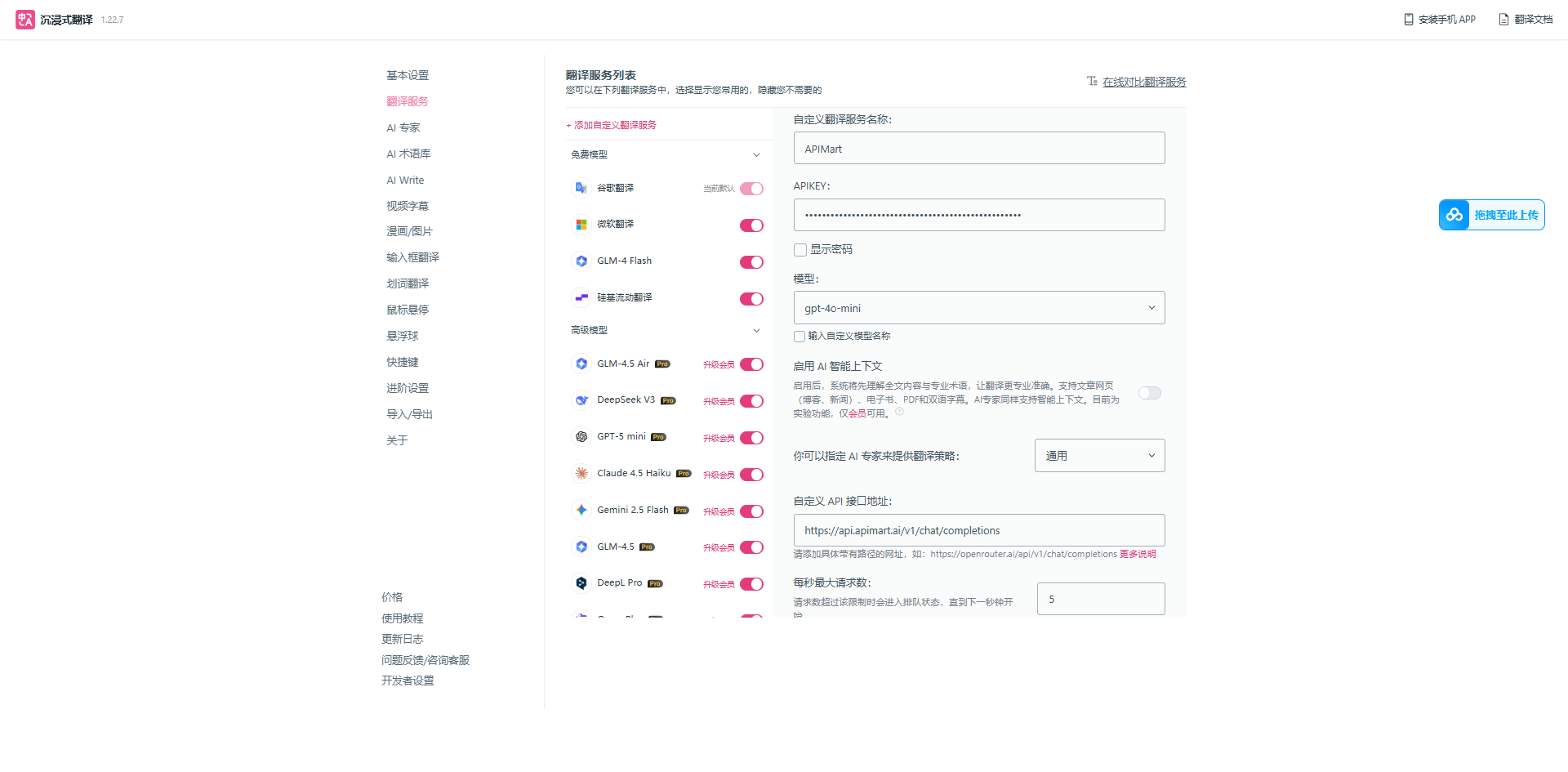 *Fill in APIMart custom translation service configuration*
## Step 3: Save and Select Translation Service
After completing the configuration:
1. Click the **Save** button at the bottom of the configuration page
2. Return to the extension panel, select **APIMart** from the **Translation Service** dropdown menu
3. You can select translation style (such as "General") in **AI Expert**
### Recommended Models
Different models are suitable for different translation scenarios:
**Available Models:**
* **gpt-5** - Latest model, highest translation quality ⭐ Recommended
* **gpt-4o** - High-quality translation, fast speed
* **gpt-4o-mini** - Cost-effective, suitable for large-scale translation 💰 Best Value
* **claude-sonnet-4-5-20250929** - Good for literary translation
* **claude-haiku-4-5-20251001** - Fast translation, cost-effective
**Translation Scenario Recommendations:**
* 📚 **Professional Docs, Technical Docs:** `gpt-5`, `gpt-4o`
* 📰 **News Articles, Blogs:** `gpt-4o`, `claude-sonnet-4-5-20250929`
* 💬 **Daily Web Browsing:** `gpt-4o-mini`, `claude-haiku-4-5-20251001`
* 🎨 **Literary Works, Creative Content:** `claude-sonnet-4-5-20250929`, `gpt-5`
* 💰 **High-Volume, Cost-Sensitive:** `gpt-4o-mini`
## Step 4: Start Using Translation
After configuration is complete, you can start using Immersive Translate:
### 4.1 Web Page Translation
1. Open any foreign language webpage
2. Click the Immersive Translate icon in the browser toolbar
3. Select **Translate this page** or use the shortcut (default: `Alt+A`)
*Fill in APIMart custom translation service configuration*
## Step 3: Save and Select Translation Service
After completing the configuration:
1. Click the **Save** button at the bottom of the configuration page
2. Return to the extension panel, select **APIMart** from the **Translation Service** dropdown menu
3. You can select translation style (such as "General") in **AI Expert**
### Recommended Models
Different models are suitable for different translation scenarios:
**Available Models:**
* **gpt-5** - Latest model, highest translation quality ⭐ Recommended
* **gpt-4o** - High-quality translation, fast speed
* **gpt-4o-mini** - Cost-effective, suitable for large-scale translation 💰 Best Value
* **claude-sonnet-4-5-20250929** - Good for literary translation
* **claude-haiku-4-5-20251001** - Fast translation, cost-effective
**Translation Scenario Recommendations:**
* 📚 **Professional Docs, Technical Docs:** `gpt-5`, `gpt-4o`
* 📰 **News Articles, Blogs:** `gpt-4o`, `claude-sonnet-4-5-20250929`
* 💬 **Daily Web Browsing:** `gpt-4o-mini`, `claude-haiku-4-5-20251001`
* 🎨 **Literary Works, Creative Content:** `claude-sonnet-4-5-20250929`, `gpt-5`
* 💰 **High-Volume, Cost-Sensitive:** `gpt-4o-mini`
## Step 4: Start Using Translation
After configuration is complete, you can start using Immersive Translate:
### 4.1 Web Page Translation
1. Open any foreign language webpage
2. Click the Immersive Translate icon in the browser toolbar
3. Select **Translate this page** or use the shortcut (default: `Alt+A`)
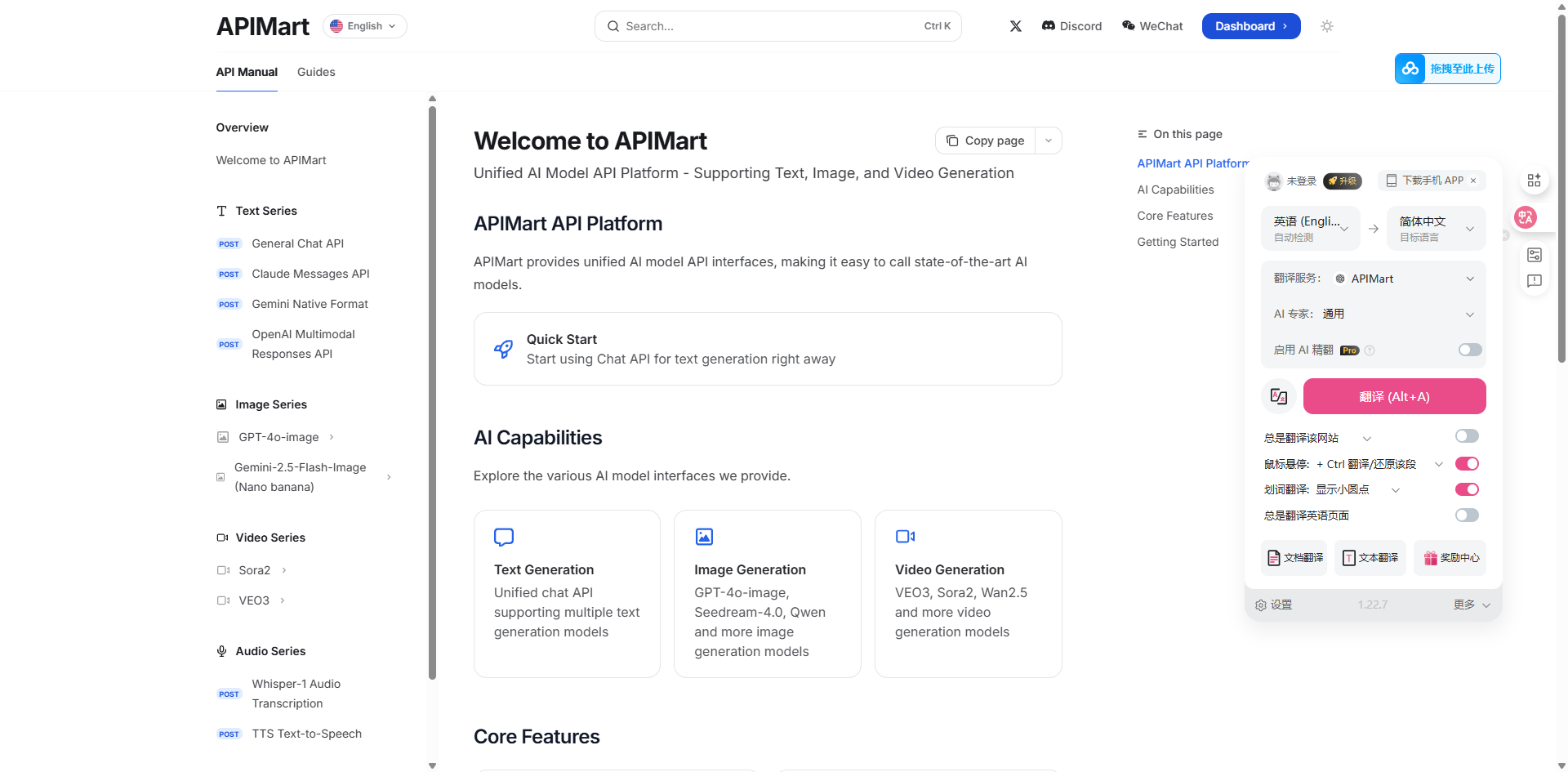 *Immersive Translate webpage effect example*
*Selection translation feature example*
### 4.3 PDF Translation
Immersive Translate supports online PDF file translation:
1. Open a PDF file in your browser (online PDF)
2. Click the Immersive Translate icon to open the extension panel
3. Click the **Click to translate PDF (Alt+A)** button
4. Wait for translation to complete, PDF will display bilingual comparison
*Immersive Translate webpage effect example*
*Selection translation feature example*
### 4.3 PDF Translation
Immersive Translate supports online PDF file translation:
1. Open a PDF file in your browser (online PDF)
2. Click the Immersive Translate icon to open the extension panel
3. Click the **Click to translate PDF (Alt+A)** button
4. Wait for translation to complete, PDF will display bilingual comparison
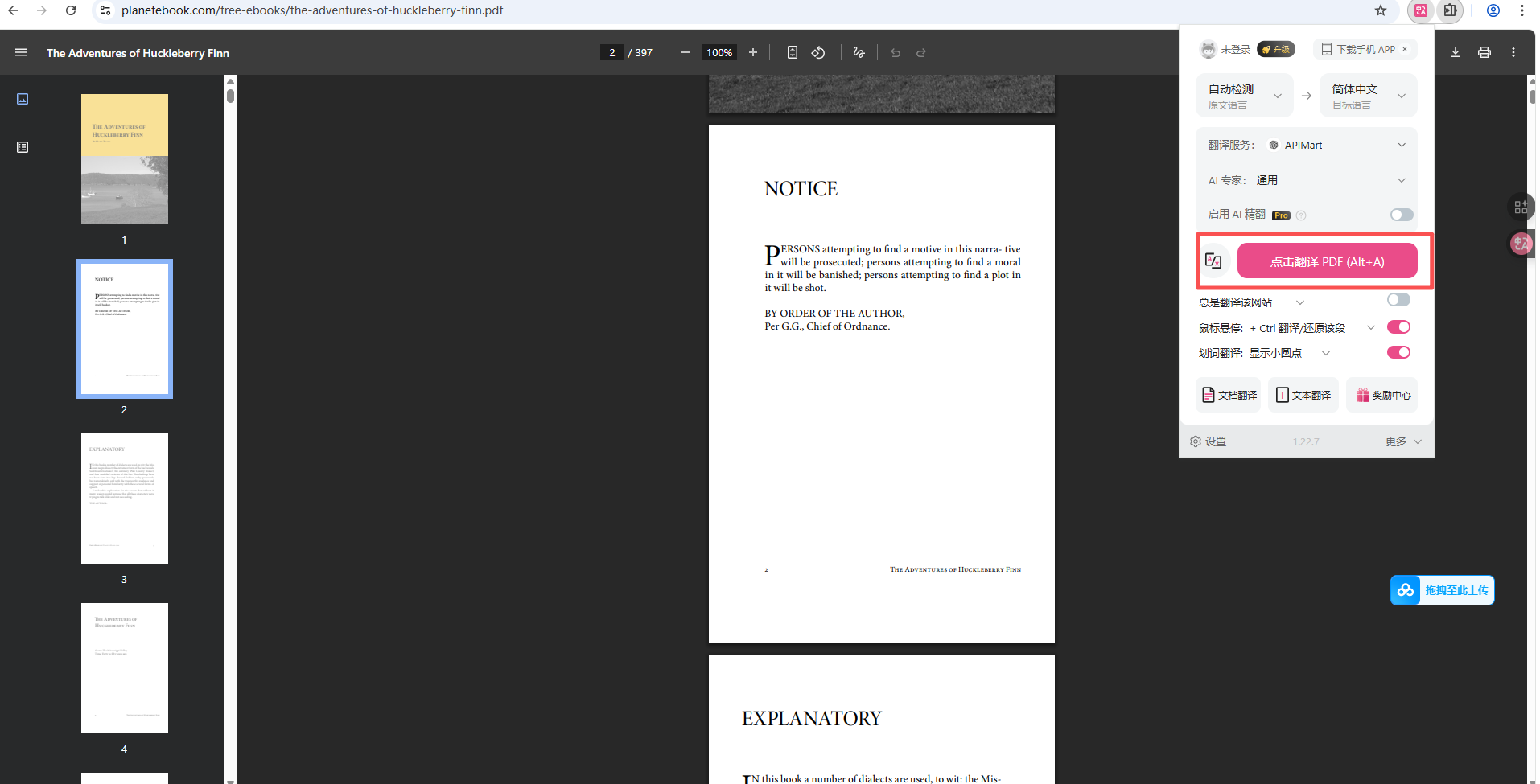 *PDF document bilingual translation example*
**PDF Translation Support:**
* ✅ Supports online PDF files (such as planetebook.com, arXiv.org, etc.)
* ✅ Maintains original layout, displays bilingual comparison
* ✅ Supports selecting translation regions
* ❌ Local PDFs need to be uploaded to web viewer
### 4.4 Video Subtitle Translation
Supports real-time subtitle translation for mainstream video platforms:
1. Open YouTube, Netflix and other video platforms
2. Play video, Immersive Translate automatically recognizes subtitles
3. Automatically generates bilingual subtitle display
**Supported Platforms:**
* 🎬 YouTube
* 📺 Netflix
* 🎥 Coursera
* 📹 Udemy
* 🎓 edX
## Advanced Features
### Custom Translation Rules
Rich personalization options can be configured in settings:
**Basic Settings:**
* **Translation Service** - Select default translation service (APIMart)
* **AI Expert** - Select translation style (General, Professional, Literary, etc.)
* **AI Terminology** - Manage professional terminology translation
**Advanced Options:**
* **Website Rules** - Set automatic translation rules for specific websites
* **Translation Style** - Customize translation color, font and other display styles
* **Mouse Hover Settings** - Configure Ctrl + mouse hover to show original text
* **Word Selection Translation** - Set translation behavior after selecting text
* **Input Box Enhancement** - Enable real-time translation in input boxes
### Keyboard Shortcuts
Immersive Translate provides convenient keyboard shortcuts:
| Function | Default Shortcut | Description |
| ------------------------------ | --------------------- | ------------------------------------------- |
| **Translate Webpage/PDF** | `Alt+A` | Start translating current page or PDF |
| **Show Original** | `Alt+A` again | Toggle to show original text |
| **Word Translation Panel** | `Alt+W` | Open word selection translation window |
| **Switch Translation Service** | Configure in settings | Quickly switch between translation services |
**Shortcut Tip:** All shortcuts can be customized in extension settings, choose the key combination that best suits your habits.
### Translation Modes
Immersive Translate offers multiple flexible translation display modes:
| Mode | Description | Use Case |
| ------------------------ | -------------------------------------------- | ------------------------------------------ |
| **Bilingual Comparison** | Original and translated paragraphs alternate | Learning, comparative reading 📚 |
| **Mouse Hover** | Show translation on paragraph hover | Occasional translation viewing 👆 |
| **Only This Website** | Enable translation only on current site | Specific website frequent use 🌐 |
| **Word Selection** | Show translation after selecting text | Precise translation of specific content ✍️ |
## FAQ
### Q1: Translation not working after configuration?
**Solutions:**
1. **Check Translation Service Selection**:
* Open extension panel, confirm **APIMart** is selected in "Translation Service" dropdown
* If you can't see APIMart, return to settings page to check if configuration is saved
2. **Check API Key**:
* Confirm APIKEY is correct and starts with `sk-`
* Check if key is valid and has balance at [APIMart Console](https://apimart.ai/keys)
3. **Check API Endpoint**:
* Must fill in complete path: `https://api.apimart.ai/v1/chat/completions`
* Note it's not `/v1` but `/v1/chat/completions`
4. **Check Model Name**:
* Confirm model name is correct (like `gpt-4o-mini`, `gpt-5`)
* Model names are case-sensitive
### Q2: Translation slow or timing out?
**Solutions:**
1. **Adjust Max Requests Per Second**:
* In configuration, reduce "Max Requests Per Second" to `3`
* Avoid too many concurrent requests causing timeout
2. **Switch to Faster Model**:
* Use `gpt-4o-mini` (fast and economical)
* Or use `claude-haiku-4-5-20251001`
3. **Check Network Connection**:
* Ensure stable network, avoid frequent disconnections
* For large pages, recommend translating in sections
4. **Disable Unnecessary Features**:
* Temporarily disable "Enable AI Illustration" and other enhanced features
* Reduce API call count
### Q3: Translation quality not ideal?
**Solutions:**
1. **Choose Higher Quality Model**:
* Use `gpt-5` (latest and strongest) or `gpt-4o` (high quality)
* For literary and professional content, recommend `claude-sonnet-4-5-20250929`
2. **Adjust AI Expert Settings**:
* Select appropriate "AI Expert" in extension panel
* Choose "Professional" for technical docs, "General" for daily content
3. **Use Terminology Library**:
* Configure "AI Terminology" in settings
* Add preferred translations for professional terms, ensure consistency
4. **Enable AI Context Enhancement**:
* Enable "AI Smart Context" in custom service configuration
* Provides more accurate contextual understanding
### Q4: Some websites cannot be translated?
**Solutions:**
1. **Check Website Compatibility**:
* Some dynamically loaded websites may need page refresh
* SPAs may need manual translation triggering
2. **Add Website Rules**:
* Add specific website configuration in "Website Rules" in settings
* Specify translation areas and exclusion areas
3. **Try Different Translation Modes**:
* Switch to "Mouse Hover" or "Word Selection" mode
* Some websites work better in specific modes
### Q5: How to view translation consumption?
Login to [APIMart Console](https://apimart.ai/overview) to view detailed statistics:
* 📊 **API Call Statistics** - Real-time view of call count and frequency
* 💰 **Cost Details** - Detailed cost record for each call
* 📈 **Usage Trends** - View usage by date/model
* 🔍 **Request Logs** - Detailed request and response records
## Usage Tips
### 1. Smart Translation Service Selection
Choose appropriate models for different scenarios:
* **📚 Academic Papers, Technical Docs**: Use `gpt-5` for accuracy
* **📰 News Articles, Blogs**: Use `gpt-4o` to balance quality and speed
* **💬 Social Media, Daily Browsing**: Use `gpt-4o-mini` to save costs
* **🎨 Literary Works, Creative Content**: Use `claude-sonnet-4-5-20250929`
### 2. Configure Website Auto-Translation
Set auto-translation rules for frequently visited websites:
1. Open Settings → **Website Rules**
2. Add website domain (like `github.com`)
3. Set to "Always Translate" or "Never Translate"
4. After saving, rules apply automatically when visiting the site
### 3. Use Word Selection for Precise Queries
For specific content within large text blocks:
1. Enable "Word Selection Translation" feature
2. Select text that needs translation
3. View precise translation results
4. Avoid translating entire page, save API calls
### 4. Optimize Translation Quality
**Configure Terminology Library**:
* Add professional terms in settings
* Ensure consistency in technical terminology translation
* Support multiple terminology library categories
**Choose Appropriate AI Expert**:
* Select "Professional" or "Technical" for technical docs
* Select "General" for daily content
* Select "Literary" or "Creative" for literary works
### 5. Save API Costs
**Cost Control Strategy**:
* ✅ Use `gpt-4o-mini` as default model for daily browsing
* ✅ Only switch to `gpt-5` for important documents
* ✅ Configure "Max Requests Per Second" to 3-5, avoid limits
* ✅ Use "Only This Website" feature to control translation scope
* ✅ Select needed page ranges when translating PDFs
* ❌ Avoid frequently refreshing already translated pages
## Features
Using Immersive Translate + APIMart, you can:
* 🌐 **Webpage Translation** - Bilingual comparison display, maintains original layout
* 📄 **PDF Translation** - Supports online PDF document translation
* 🎬 **Video Subtitles** - YouTube, Netflix and other platforms' bilingual subtitles
* ✍️ **Word Selection Translation** - Select and translate, quick understanding
* 📧 **Input Enhancement** - Direct translation in input boxes
* 📱 **Full Platform Support** - Chrome, Edge, Firefox, Safari, etc.
* 🎨 **Custom Styles** - Adjust translation display effects
* ⚡ **Quick Operations** - Rich keyboard shortcut support
## Support and Help
If you encounter any issues during use:
* 📚 [APIMart Documentation Center](https://docs.apimart.ai)
* 📚 [Immersive Translate Documentation](https://immersivetranslate.com/docs/)
* 💬 [Discord Community](https://discord.gg/V8zqssyZ5c)
* 🐦 [Twitter @APIMart\_](https://x.com/APIMart_)
* 📧 Technical Support: [zhihong@apimart.ai](mailto:zhihong@apimart.ai)
***
Register for APIMart now, get your API key, and enjoy high-quality translation services!
*PDF document bilingual translation example*
**PDF Translation Support:**
* ✅ Supports online PDF files (such as planetebook.com, arXiv.org, etc.)
* ✅ Maintains original layout, displays bilingual comparison
* ✅ Supports selecting translation regions
* ❌ Local PDFs need to be uploaded to web viewer
### 4.4 Video Subtitle Translation
Supports real-time subtitle translation for mainstream video platforms:
1. Open YouTube, Netflix and other video platforms
2. Play video, Immersive Translate automatically recognizes subtitles
3. Automatically generates bilingual subtitle display
**Supported Platforms:**
* 🎬 YouTube
* 📺 Netflix
* 🎥 Coursera
* 📹 Udemy
* 🎓 edX
## Advanced Features
### Custom Translation Rules
Rich personalization options can be configured in settings:
**Basic Settings:**
* **Translation Service** - Select default translation service (APIMart)
* **AI Expert** - Select translation style (General, Professional, Literary, etc.)
* **AI Terminology** - Manage professional terminology translation
**Advanced Options:**
* **Website Rules** - Set automatic translation rules for specific websites
* **Translation Style** - Customize translation color, font and other display styles
* **Mouse Hover Settings** - Configure Ctrl + mouse hover to show original text
* **Word Selection Translation** - Set translation behavior after selecting text
* **Input Box Enhancement** - Enable real-time translation in input boxes
### Keyboard Shortcuts
Immersive Translate provides convenient keyboard shortcuts:
| Function | Default Shortcut | Description |
| ------------------------------ | --------------------- | ------------------------------------------- |
| **Translate Webpage/PDF** | `Alt+A` | Start translating current page or PDF |
| **Show Original** | `Alt+A` again | Toggle to show original text |
| **Word Translation Panel** | `Alt+W` | Open word selection translation window |
| **Switch Translation Service** | Configure in settings | Quickly switch between translation services |
**Shortcut Tip:** All shortcuts can be customized in extension settings, choose the key combination that best suits your habits.
### Translation Modes
Immersive Translate offers multiple flexible translation display modes:
| Mode | Description | Use Case |
| ------------------------ | -------------------------------------------- | ------------------------------------------ |
| **Bilingual Comparison** | Original and translated paragraphs alternate | Learning, comparative reading 📚 |
| **Mouse Hover** | Show translation on paragraph hover | Occasional translation viewing 👆 |
| **Only This Website** | Enable translation only on current site | Specific website frequent use 🌐 |
| **Word Selection** | Show translation after selecting text | Precise translation of specific content ✍️ |
## FAQ
### Q1: Translation not working after configuration?
**Solutions:**
1. **Check Translation Service Selection**:
* Open extension panel, confirm **APIMart** is selected in "Translation Service" dropdown
* If you can't see APIMart, return to settings page to check if configuration is saved
2. **Check API Key**:
* Confirm APIKEY is correct and starts with `sk-`
* Check if key is valid and has balance at [APIMart Console](https://apimart.ai/keys)
3. **Check API Endpoint**:
* Must fill in complete path: `https://api.apimart.ai/v1/chat/completions`
* Note it's not `/v1` but `/v1/chat/completions`
4. **Check Model Name**:
* Confirm model name is correct (like `gpt-4o-mini`, `gpt-5`)
* Model names are case-sensitive
### Q2: Translation slow or timing out?
**Solutions:**
1. **Adjust Max Requests Per Second**:
* In configuration, reduce "Max Requests Per Second" to `3`
* Avoid too many concurrent requests causing timeout
2. **Switch to Faster Model**:
* Use `gpt-4o-mini` (fast and economical)
* Or use `claude-haiku-4-5-20251001`
3. **Check Network Connection**:
* Ensure stable network, avoid frequent disconnections
* For large pages, recommend translating in sections
4. **Disable Unnecessary Features**:
* Temporarily disable "Enable AI Illustration" and other enhanced features
* Reduce API call count
### Q3: Translation quality not ideal?
**Solutions:**
1. **Choose Higher Quality Model**:
* Use `gpt-5` (latest and strongest) or `gpt-4o` (high quality)
* For literary and professional content, recommend `claude-sonnet-4-5-20250929`
2. **Adjust AI Expert Settings**:
* Select appropriate "AI Expert" in extension panel
* Choose "Professional" for technical docs, "General" for daily content
3. **Use Terminology Library**:
* Configure "AI Terminology" in settings
* Add preferred translations for professional terms, ensure consistency
4. **Enable AI Context Enhancement**:
* Enable "AI Smart Context" in custom service configuration
* Provides more accurate contextual understanding
### Q4: Some websites cannot be translated?
**Solutions:**
1. **Check Website Compatibility**:
* Some dynamically loaded websites may need page refresh
* SPAs may need manual translation triggering
2. **Add Website Rules**:
* Add specific website configuration in "Website Rules" in settings
* Specify translation areas and exclusion areas
3. **Try Different Translation Modes**:
* Switch to "Mouse Hover" or "Word Selection" mode
* Some websites work better in specific modes
### Q5: How to view translation consumption?
Login to [APIMart Console](https://apimart.ai/overview) to view detailed statistics:
* 📊 **API Call Statistics** - Real-time view of call count and frequency
* 💰 **Cost Details** - Detailed cost record for each call
* 📈 **Usage Trends** - View usage by date/model
* 🔍 **Request Logs** - Detailed request and response records
## Usage Tips
### 1. Smart Translation Service Selection
Choose appropriate models for different scenarios:
* **📚 Academic Papers, Technical Docs**: Use `gpt-5` for accuracy
* **📰 News Articles, Blogs**: Use `gpt-4o` to balance quality and speed
* **💬 Social Media, Daily Browsing**: Use `gpt-4o-mini` to save costs
* **🎨 Literary Works, Creative Content**: Use `claude-sonnet-4-5-20250929`
### 2. Configure Website Auto-Translation
Set auto-translation rules for frequently visited websites:
1. Open Settings → **Website Rules**
2. Add website domain (like `github.com`)
3. Set to "Always Translate" or "Never Translate"
4. After saving, rules apply automatically when visiting the site
### 3. Use Word Selection for Precise Queries
For specific content within large text blocks:
1. Enable "Word Selection Translation" feature
2. Select text that needs translation
3. View precise translation results
4. Avoid translating entire page, save API calls
### 4. Optimize Translation Quality
**Configure Terminology Library**:
* Add professional terms in settings
* Ensure consistency in technical terminology translation
* Support multiple terminology library categories
**Choose Appropriate AI Expert**:
* Select "Professional" or "Technical" for technical docs
* Select "General" for daily content
* Select "Literary" or "Creative" for literary works
### 5. Save API Costs
**Cost Control Strategy**:
* ✅ Use `gpt-4o-mini` as default model for daily browsing
* ✅ Only switch to `gpt-5` for important documents
* ✅ Configure "Max Requests Per Second" to 3-5, avoid limits
* ✅ Use "Only This Website" feature to control translation scope
* ✅ Select needed page ranges when translating PDFs
* ❌ Avoid frequently refreshing already translated pages
## Features
Using Immersive Translate + APIMart, you can:
* 🌐 **Webpage Translation** - Bilingual comparison display, maintains original layout
* 📄 **PDF Translation** - Supports online PDF document translation
* 🎬 **Video Subtitles** - YouTube, Netflix and other platforms' bilingual subtitles
* ✍️ **Word Selection Translation** - Select and translate, quick understanding
* 📧 **Input Enhancement** - Direct translation in input boxes
* 📱 **Full Platform Support** - Chrome, Edge, Firefox, Safari, etc.
* 🎨 **Custom Styles** - Adjust translation display effects
* ⚡ **Quick Operations** - Rich keyboard shortcut support
## Support and Help
If you encounter any issues during use:
* 📚 [APIMart Documentation Center](https://docs.apimart.ai)
* 📚 [Immersive Translate Documentation](https://immersivetranslate.com/docs/)
* 💬 [Discord Community](https://discord.gg/V8zqssyZ5c)
* 🐦 [Twitter @APIMart\_](https://x.com/APIMart_)
* 📧 Technical Support: [zhihong@apimart.ai](mailto:zhihong@apimart.ai)
***
Register for APIMart now, get your API key, and enjoy high-quality translation services!