> ## Documentation Index
> Fetch the complete documentation index at: https://docs.apimart.ai/llms.txt
> Use this file to discover all available pages before exploring further.
# Using APIMart in AnythingLLM
> Detailed guide on how to configure and use APIMart API service in AnythingLLM. This guide will help you configure APIMart API in AnythingLLM to build private AI knowledge bases and conversation systems.
## Prerequisites
Before you begin, please ensure:
1. **AnythingLLM installed**\
Download and install AnythingLLM from [official website](https://anythingllm.com/) or visit [GitHub](https://github.com/Mintplex-Labs/anything-llm)
2. **APIMart API Key obtained**\
Log in to [APIMart Console](https://apimart.ai/keys) to get your API key (starts with `sk-`)
**Tip:** If you don't have an APIMart account yet, please register at [APIMart](https://apimart.ai) and obtain an API key first.
## Step 1: Launch AnythingLLM and Access Settings
### 1.1 Start the Application
1. Launch AnythingLLM desktop application or access the web version
2. Welcome screen will appear on first launch
3. Click the **Open settings** button in the bottom left corner
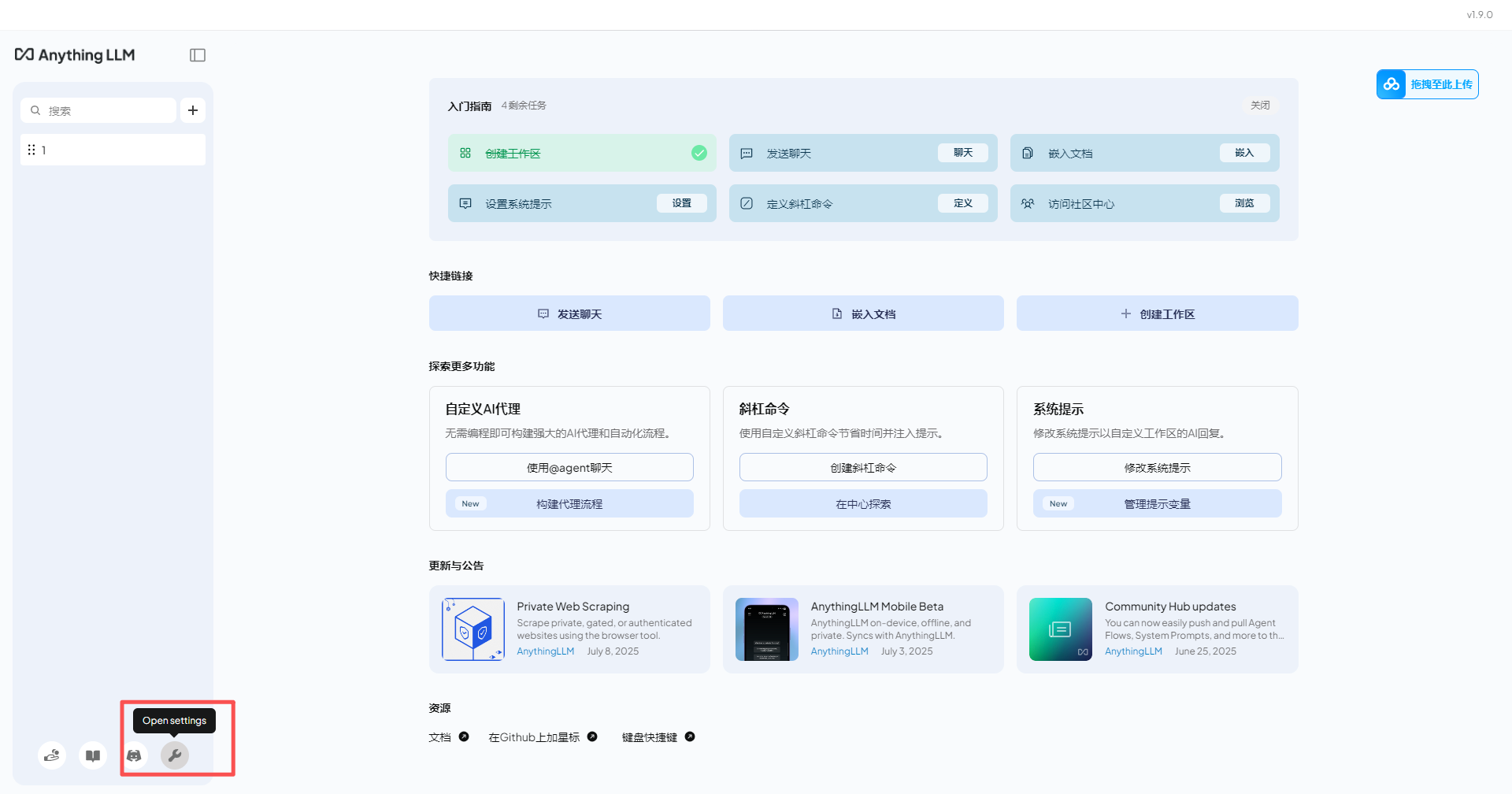 *AnythingLLM main interface showing workspace list and settings access*
**Note:** AnythingLLM supports desktop versions (Windows, macOS, Linux) and Docker deployment.
### 1.2 Navigate to LLM Configuration
In the settings page:
1. Find **LLM Preference** in the left menu
2. Click to enter LLM configuration page
## Step 2: Configure APIMart API
### 2.1 Select LLM Provider
On the LLM configuration page:
1. Find the **LLM Provider** dropdown menu
2. Select **Generic OpenAI**
*AnythingLLM main interface showing workspace list and settings access*
**Note:** AnythingLLM supports desktop versions (Windows, macOS, Linux) and Docker deployment.
### 1.2 Navigate to LLM Configuration
In the settings page:
1. Find **LLM Preference** in the left menu
2. Click to enter LLM configuration page
## Step 2: Configure APIMart API
### 2.1 Select LLM Provider
On the LLM configuration page:
1. Find the **LLM Provider** dropdown menu
2. Select **Generic OpenAI**
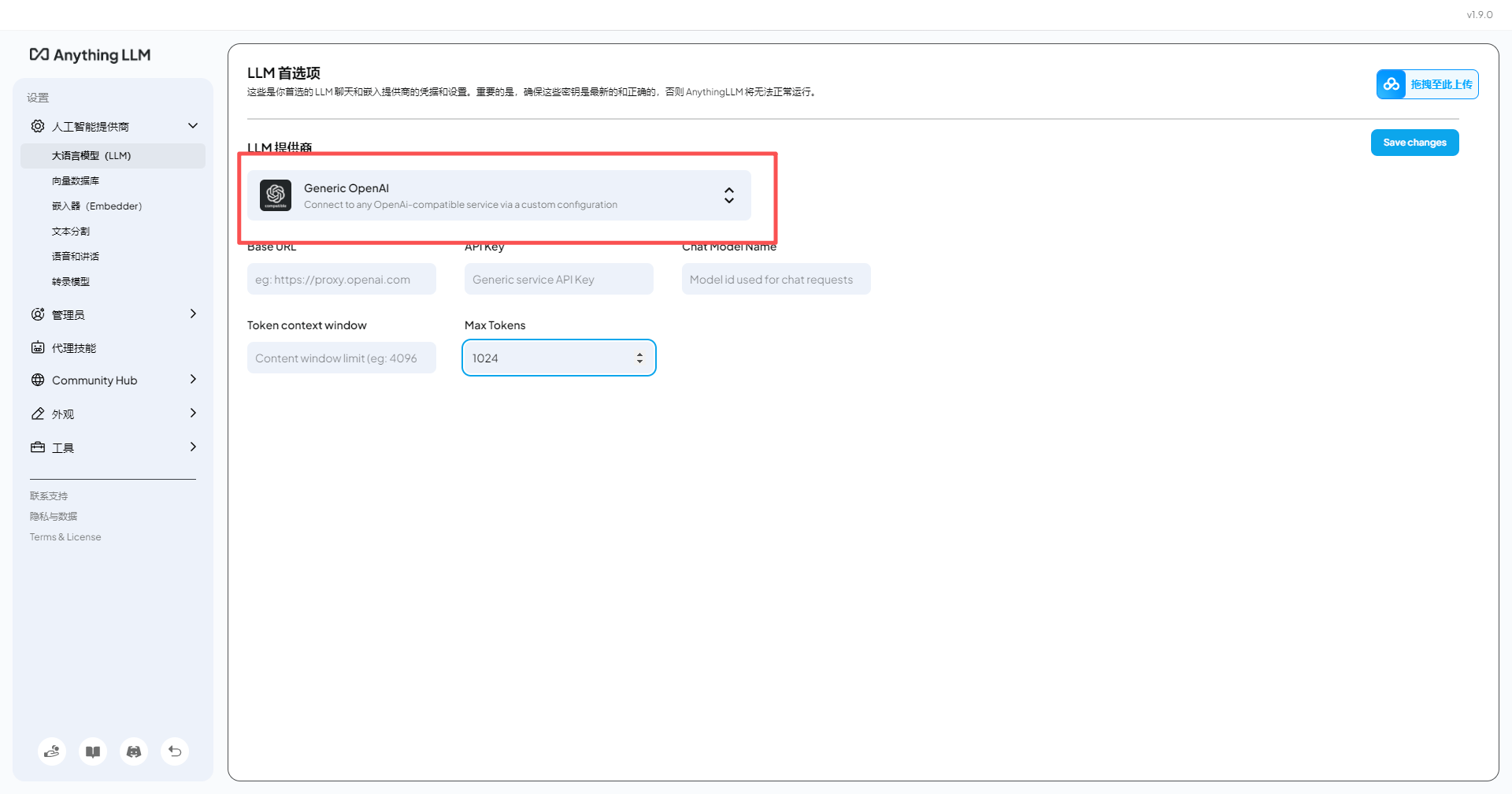 *Select Generic OpenAI as the LLM provider*
**Why Generic OpenAI?** APIMart provides OpenAI-compatible API interface, so selecting Generic OpenAI provider in AnythingLLM allows you to use APIMart services.
### 2.2 Configure API Information
After selecting Generic OpenAI, fill in the following configuration:
| Field | Value |
| --------------------------------- | -------------------------------------------------------- |
| **API Key** | Your APIMart API key (`sk-xxxxxxxxxxxx`) |
| **Base URL** or **API Base Path** | `https://api.apimart.ai/v1` |
| **Chat Model** or **Model Name** | Enter specific model name (see recommended models below) |
*Select Generic OpenAI as the LLM provider*
**Why Generic OpenAI?** APIMart provides OpenAI-compatible API interface, so selecting Generic OpenAI provider in AnythingLLM allows you to use APIMart services.
### 2.2 Configure API Information
After selecting Generic OpenAI, fill in the following configuration:
| Field | Value |
| --------------------------------- | -------------------------------------------------------- |
| **API Key** | Your APIMart API key (`sk-xxxxxxxxxxxx`) |
| **Base URL** or **API Base Path** | `https://api.apimart.ai/v1` |
| **Chat Model** or **Model Name** | Enter specific model name (see recommended models below) |
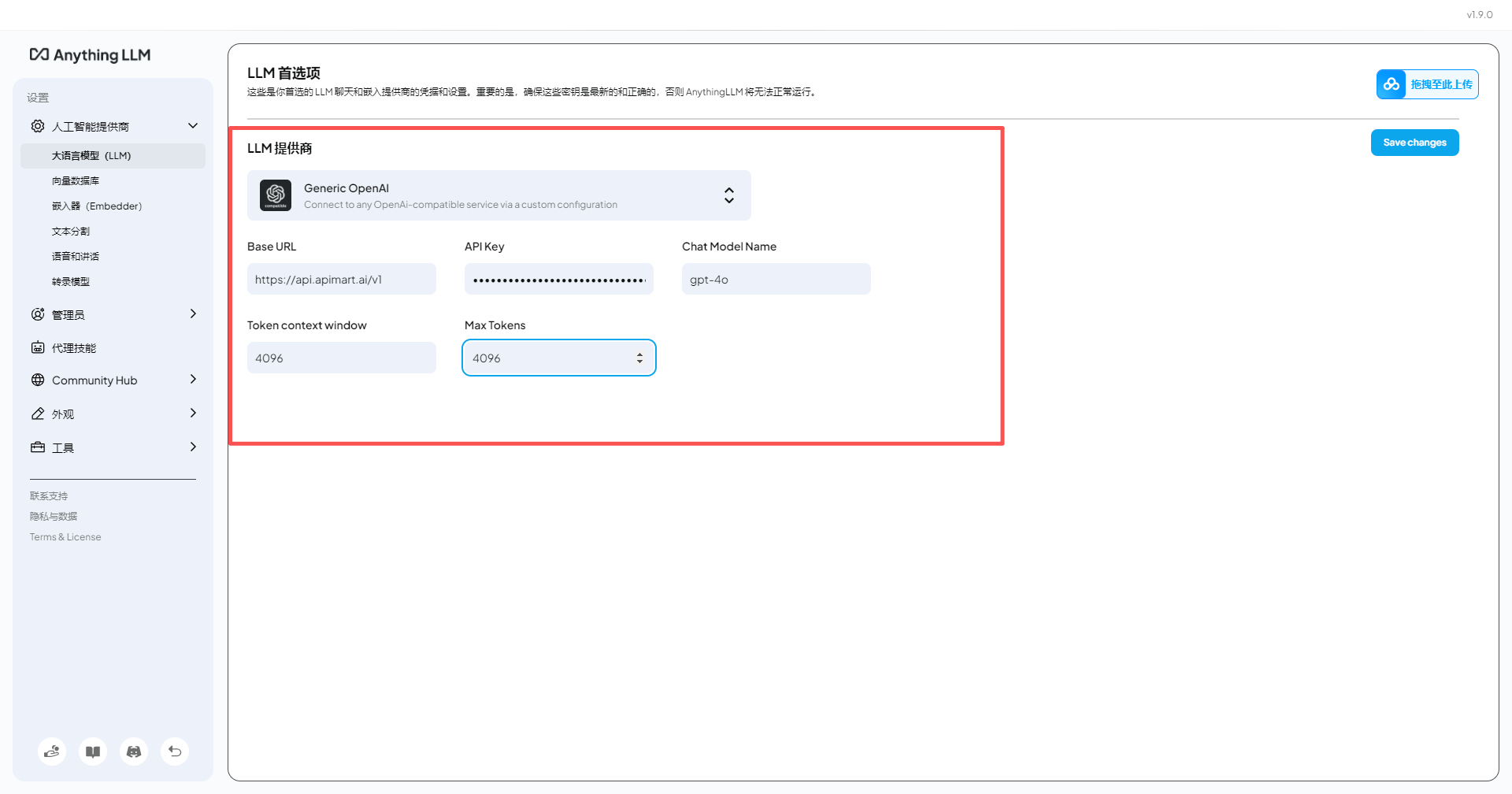 *Fill in APIMart API Key, Base URL and model name*
**Important:**
* Base URL must include `/v1` suffix: `https://api.apimart.ai/v1`
* API Key must be obtained from APIMart console and start with `sk-`
* Model name must be the exact model ID (e.g., `gpt-4o`, `claude-sonnet-4-5-20250929`, etc.)
* Ensure your API key has sufficient balance
**Recommended Models:**
| Model Name | Model ID | Features |
| ----------------- | ------------------------------- | -------------------------------- |
| GPT-5 | `gpt-5` | Latest and most powerful |
| GPT-4o | `gpt-4o` or `chatgpt-4o-latest` | High-quality conversation |
| GPT-4o Mini | `gpt-4o-mini` | Fast and economical |
| Claude Sonnet 4.5 | `claude-sonnet-4-5-20250929` | Excellent for code and reasoning |
| Claude Haiku 4.5 | `claude-haiku-4-5-20251001` | Fast response |
| Gemini 2.0 Flash | `gemini-2.0-flash-exp` | Multimodal support |
**Performance Recommendations:**
* 💰 **Cost-effective:** `gpt-4o-mini`, `claude-haiku-4-5-20251001`
* 🚀 **High-performance:** `gpt-5`, `gpt-4o`, `claude-sonnet-4-5-20250929`
* ⚡ **Fast response:** `gemini-2.0-flash-exp`, `gpt-4o-mini`
### 2.3 Adjust Model Parameters (Optional)
You can adjust the following parameters as needed:
| Parameter | Description | Recommended Value |
| --------------- | -------------------------- | ------------------------------ |
| **Temperature** | Controls output randomness | 0.7 (creative) / 0.3 (precise) |
| **Max Tokens** | Maximum output length | 2000-4000 |
| **Top P** | Nucleus sampling parameter | 0.9 |
### 2.4 Save Configuration
1. Click the **Save** button at the bottom of the page
2. System will automatically test the connection
3. Success message will appear if configuration is correct
## Step 3: Configure Embedding Model (Optional)
AnythingLLM supports vector embeddings for document retrieval and knowledge base functionality.
### 3.1 Navigate to Embedding Settings
In the settings page:
1. Find **Embedding Preference** in the left menu
2. Click to enter embedding model configuration page
### 3.2 Configure Embedding Model
| Field | Value |
| ---------------------- | ---------------------------------------------------- |
| **Embedding Provider** | Select **Generic OpenAI** |
| **API Key** | Your APIMart API key (`sk-xxxxxxxxxxxx`) |
| **Base URL** | `https://api.apimart.ai/v1` |
| **Model** | `text-embedding-3-small` or `text-embedding-3-large` |
**Model Selection Recommendations:**
* `text-embedding-3-small` - Fast and economical, suitable for most scenarios
* `text-embedding-3-large` - Higher precision, suitable for scenarios requiring high retrieval quality
## Step 4: Create Workspace and Upload Documents
### 4.1 Create Workspace
1. Return to main interface
2. Click **+ New Workspace**
3. Enter workspace name (e.g., "Technical Documentation Assistant", "Customer Service Knowledge Base")
4. Click Create
### 4.2 Upload Documents
AnythingLLM supports various document formats:
**Supported Document Types:**
* 📄 **Text Documents** - .txt, .md, .pdf, .docx
* 💻 **Code Files** - .py, .js, .java, .cpp, etc.
* 🌐 **Web Pages** - Via URL scraping
* 📊 **Data Files** - .csv, .json, .xml
**Upload Steps:**
1. On the workspace page, click **Upload Documents**
2. Select files or drag and drop files into the upload area
3. Wait for document processing to complete
4. Documents will be automatically vectorized
**Document Processing:** Uploaded documents are automatically split into chunks and vectorized using the embedding model, stored in local database.
### 4.3 Manage Documents
On the document management page:
1. View all uploaded documents
2. Delete unnecessary documents
3. View document chunking details
4. Edit document metadata
## Step 5: Start Conversations
After configuration, you can start using AnythingLLM:
### 5.1 Basic Conversations
1. In the workspace, find the conversation input box
2. Enter your question or request
3. AI will generate responses based on your uploaded documents and APIMart models
### 5.2 Using Knowledge Base Features
AnythingLLM will automatically:
1. Analyze your question
2. Retrieve relevant content from uploaded documents
3. Generate accurate answers combining retrieved content and AI model
**Improve Retrieval Effectiveness:**
* Upload high-quality, structured documents
* Use clear, specific questions
* Regularly update and maintain knowledge base
### 5.3 Switch Workspaces
You can create multiple workspaces for different projects or topics:
1. Click workspace name in top left corner
2. Select other workspaces or create new ones
3. Each workspace has independent documents and conversation history
## Advanced Features
### 1. Agent Mode
AnythingLLM supports Agent functionality, allowing AI to:
* 🔍 **Search Web** - Get real-time information
* 🧮 **Perform Calculations** - Handle math and data analysis
* 📊 **Generate Charts** - Visualize data
* 🔗 **Call APIs** - Interact with external services
**Enable Agent Mode:**
1. Find **Agent Configuration** in workspace settings
2. Select tools and features to enable
3. Save configuration
### 2. Conversation History Management
* **Export Conversations** - Export conversations as text or JSON format
* **Search History** - Quickly find historical conversations
* **Delete Records** - Clean up unnecessary conversation history
### 3. Custom System Prompts
In workspace settings:
1. Find **System Prompt**
2. Customize AI's role and behavior
3. Example:
```
You are a professional technical support engineer, skilled at answering technical questions about products.
When answering, please:
1. Maintain professionalism and courtesy
2. Provide detailed step-by-step instructions
3. If uncertain, recommend contacting technical support
```
### 4. Multi-user Management (Docker Deployment Only)
If using Docker deployment:
* Create multiple user accounts
* Set different permission levels
* Manage workspace access permissions
### 5. API Access
AnythingLLM provides REST API for:
* Programmatic workspace access
* Upload and manage documents
* Send conversation requests
* Integrate into your applications
## FAQ
### Q1: Cannot connect to APIMart service?
**Solution:**
1. **Check Base URL**:
* Ensure it's `https://api.apimart.ai/v1` (includes `/v1`)
* Don't add extra paths or omit `/v1`
2. **Verify API Key**:
* Confirm API Key starts with `sk-`
* Check if key is valid in [APIMart Console](https://apimart.ai/keys)
3. **Check Network Connection**:
* Ensure access to `https://api.apimart.ai`
* Check firewall or proxy settings
### Q2: Documents not retrieving properly after upload?
**Solution:**
1. **Check Embedding Model Configuration**:
* Confirm embedding model is correctly configured
* Test embedding model connection
2. **Re-process Documents**:
* Delete and re-upload documents
* Check if document format is supported
3. **Adjust Retrieval Parameters**:
* Adjust similarity threshold in workspace settings
* Increase number of returned document chunks
### Q3: Slow conversation response?
**Solution:**
1. **Switch to Faster Models**:
* Use `gpt-4o-mini` instead of `gpt-4o`
* Use `gemini-2.0-flash-exp` for faster response
2. **Optimize Document Quantity**:
* Reduce number of documents in workspace
* Remove unnecessary large files
3. **Adjust Max Tokens**:
* Reduce maximum output length
* Use more concise prompts
### Q4: How to view API usage and costs?
Log in to [APIMart Console](https://apimart.ai/overview) to view:
* 📊 API call statistics
* 💰 Cost details
* 📈 Usage trend charts
* 🔍 Detailed request logs
### Q5: What deployment options does AnythingLLM support?
AnythingLLM supports multiple deployment options:
* 🖥️ **Desktop Application** - Windows, macOS, Linux
* 🐳 **Docker** - Self-hosted deployment
* ☁️ **Cloud Version** - AnythingLLM Cloud (coming soon)
## Use Case Examples
### 1. Enterprise Knowledge Base
**Configuration:**
* Model: `gpt-4o-mini` (cost-effective)
* Documents: Internal company documents, manuals, FAQs
* Function: Quick information lookup for employees
**Example Use Cases:**
* New employee onboarding
* Quick company policy lookup
* Technical documentation retrieval
### 2. Technical Documentation Assistant
**Configuration:**
* Model: `claude-sonnet-4-5-20250929` (excellent for code)
* Documents: API docs, technical specifications, codebase
* Function: Assist developers in finding technical information
**Example Use Cases:**
* API usage documentation queries
* Code example retrieval
* Technical question answering
### 3. Customer Service Knowledge Base
**Configuration:**
* Model: `gpt-4o` (high-quality conversation)
* Documents: Product manuals, FAQs, solutions
* Function: Quick customer question response
**Example Use Cases:**
* Automatic FAQ answering
* Product usage guidance
* Troubleshooting suggestions
### 4. Research and Learning Assistant
**Configuration:**
* Model: `gpt-5` (powerful understanding)
* Documents: Research papers, textbooks, notes
* Function: Assist in learning and research
**Example Use Cases:**
* Paper summarization and analysis
* Knowledge point explanation
* Learning path planning
## Features
Using AnythingLLM + APIMart, you can:
* 📚 **Private Knowledge Base** - Build secure private knowledge base locally
* 🔒 **Data Privacy** - All data stored locally, protecting privacy
* 🤖 **Multi-model Support** - Flexibly switch between different AI models
* 📄 **Multi-format Support** - Support various document formats
* 🎯 **Precise Retrieval** - Vector-based intelligent document retrieval
* 💬 **Contextual Conversation** - Maintain context in long conversations
* 🔧 **Highly Customizable** - Custom prompts, parameters, etc.
* 🌐 **Cross-platform** - Support Windows, macOS, Linux
## Data Security and Privacy
### Local Data Storage
AnythingLLM data storage approach:
* 📁 **Local File System** - Documents stored locally
* 🗄️ **Local Vector Database** - Vector indexes stored locally
* 💾 **Conversation History** - Conversation records stored locally
### API Call Security
* 🔐 **Encrypted Transmission** - All API calls use HTTPS encryption
* 🔑 **Key Protection** - API Key securely stored
* 🚫 **No Data Retention** - APIMart does not store your conversation content
**Privacy Notice:** While documents are stored locally, conversations and retrieved content sent to AI are transmitted to APIMart servers via API for processing. Please avoid uploading or querying content with sensitive information.
## Best Practices
### 1. Document Management
* **Regular Updates** - Keep document content current
* **Structured Organization** - Use clear folder structure
* **Naming Conventions** - Use meaningful file names
* **Delete Outdated** - Regularly clean up outdated documents
### 2. Prompt Optimization
**❌ Bad Prompt:**
```
You are an assistant
```
**✅ Good Prompt:**
```
You are a professional technical support assistant specializing in helping users resolve product-related technical issues.
When answering, please follow these principles:
1. Answer based on provided documentation; if information isn't available, clearly state so
2. Provide detailed step-by-step instructions with examples when necessary
3. Use clear, understandable language
4. For complex issues, recommend contacting the technical support team
```
### 3. Performance Optimization
* **Control Document Size** - Avoid uploading overly large individual files
* **Reasonable Chunking** - Use default document chunking settings
* **Choose Appropriate Model** - Select model based on task complexity
* **Monitor Usage** - Regularly check API usage
### 4. Workspace Planning
* **Divide by Project** - Create independent workspaces for different projects
* **Permission Management** - Set workspace permissions appropriately (Docker version)
* **Backup Data** - Regularly backup important workspaces
## Support & Help
If you encounter any issues:
* 📚 [APIMart Documentation](https://docs.apimart.ai)
* 📚 [AnythingLLM Official Documentation](https://docs.anythingllm.com/)
* 📚 [AnythingLLM GitHub](https://github.com/Mintplex-Labs/anything-llm)
* 💬 [Discord Community](https://discord.gg/V8zqssyZ5c)
* 🐦 [Twitter @APIMart\_](https://x.com/APIMart_)
* 📧 Technical Support: [zhihong@apimart.ai](mailto:zhihong@apimart.ai)
***
Register for APIMart now, get your API key, and build your private knowledge base in AnythingLLM!
*Fill in APIMart API Key, Base URL and model name*
**Important:**
* Base URL must include `/v1` suffix: `https://api.apimart.ai/v1`
* API Key must be obtained from APIMart console and start with `sk-`
* Model name must be the exact model ID (e.g., `gpt-4o`, `claude-sonnet-4-5-20250929`, etc.)
* Ensure your API key has sufficient balance
**Recommended Models:**
| Model Name | Model ID | Features |
| ----------------- | ------------------------------- | -------------------------------- |
| GPT-5 | `gpt-5` | Latest and most powerful |
| GPT-4o | `gpt-4o` or `chatgpt-4o-latest` | High-quality conversation |
| GPT-4o Mini | `gpt-4o-mini` | Fast and economical |
| Claude Sonnet 4.5 | `claude-sonnet-4-5-20250929` | Excellent for code and reasoning |
| Claude Haiku 4.5 | `claude-haiku-4-5-20251001` | Fast response |
| Gemini 2.0 Flash | `gemini-2.0-flash-exp` | Multimodal support |
**Performance Recommendations:**
* 💰 **Cost-effective:** `gpt-4o-mini`, `claude-haiku-4-5-20251001`
* 🚀 **High-performance:** `gpt-5`, `gpt-4o`, `claude-sonnet-4-5-20250929`
* ⚡ **Fast response:** `gemini-2.0-flash-exp`, `gpt-4o-mini`
### 2.3 Adjust Model Parameters (Optional)
You can adjust the following parameters as needed:
| Parameter | Description | Recommended Value |
| --------------- | -------------------------- | ------------------------------ |
| **Temperature** | Controls output randomness | 0.7 (creative) / 0.3 (precise) |
| **Max Tokens** | Maximum output length | 2000-4000 |
| **Top P** | Nucleus sampling parameter | 0.9 |
### 2.4 Save Configuration
1. Click the **Save** button at the bottom of the page
2. System will automatically test the connection
3. Success message will appear if configuration is correct
## Step 3: Configure Embedding Model (Optional)
AnythingLLM supports vector embeddings for document retrieval and knowledge base functionality.
### 3.1 Navigate to Embedding Settings
In the settings page:
1. Find **Embedding Preference** in the left menu
2. Click to enter embedding model configuration page
### 3.2 Configure Embedding Model
| Field | Value |
| ---------------------- | ---------------------------------------------------- |
| **Embedding Provider** | Select **Generic OpenAI** |
| **API Key** | Your APIMart API key (`sk-xxxxxxxxxxxx`) |
| **Base URL** | `https://api.apimart.ai/v1` |
| **Model** | `text-embedding-3-small` or `text-embedding-3-large` |
**Model Selection Recommendations:**
* `text-embedding-3-small` - Fast and economical, suitable for most scenarios
* `text-embedding-3-large` - Higher precision, suitable for scenarios requiring high retrieval quality
## Step 4: Create Workspace and Upload Documents
### 4.1 Create Workspace
1. Return to main interface
2. Click **+ New Workspace**
3. Enter workspace name (e.g., "Technical Documentation Assistant", "Customer Service Knowledge Base")
4. Click Create
### 4.2 Upload Documents
AnythingLLM supports various document formats:
**Supported Document Types:**
* 📄 **Text Documents** - .txt, .md, .pdf, .docx
* 💻 **Code Files** - .py, .js, .java, .cpp, etc.
* 🌐 **Web Pages** - Via URL scraping
* 📊 **Data Files** - .csv, .json, .xml
**Upload Steps:**
1. On the workspace page, click **Upload Documents**
2. Select files or drag and drop files into the upload area
3. Wait for document processing to complete
4. Documents will be automatically vectorized
**Document Processing:** Uploaded documents are automatically split into chunks and vectorized using the embedding model, stored in local database.
### 4.3 Manage Documents
On the document management page:
1. View all uploaded documents
2. Delete unnecessary documents
3. View document chunking details
4. Edit document metadata
## Step 5: Start Conversations
After configuration, you can start using AnythingLLM:
### 5.1 Basic Conversations
1. In the workspace, find the conversation input box
2. Enter your question or request
3. AI will generate responses based on your uploaded documents and APIMart models
### 5.2 Using Knowledge Base Features
AnythingLLM will automatically:
1. Analyze your question
2. Retrieve relevant content from uploaded documents
3. Generate accurate answers combining retrieved content and AI model
**Improve Retrieval Effectiveness:**
* Upload high-quality, structured documents
* Use clear, specific questions
* Regularly update and maintain knowledge base
### 5.3 Switch Workspaces
You can create multiple workspaces for different projects or topics:
1. Click workspace name in top left corner
2. Select other workspaces or create new ones
3. Each workspace has independent documents and conversation history
## Advanced Features
### 1. Agent Mode
AnythingLLM supports Agent functionality, allowing AI to:
* 🔍 **Search Web** - Get real-time information
* 🧮 **Perform Calculations** - Handle math and data analysis
* 📊 **Generate Charts** - Visualize data
* 🔗 **Call APIs** - Interact with external services
**Enable Agent Mode:**
1. Find **Agent Configuration** in workspace settings
2. Select tools and features to enable
3. Save configuration
### 2. Conversation History Management
* **Export Conversations** - Export conversations as text or JSON format
* **Search History** - Quickly find historical conversations
* **Delete Records** - Clean up unnecessary conversation history
### 3. Custom System Prompts
In workspace settings:
1. Find **System Prompt**
2. Customize AI's role and behavior
3. Example:
```
You are a professional technical support engineer, skilled at answering technical questions about products.
When answering, please:
1. Maintain professionalism and courtesy
2. Provide detailed step-by-step instructions
3. If uncertain, recommend contacting technical support
```
### 4. Multi-user Management (Docker Deployment Only)
If using Docker deployment:
* Create multiple user accounts
* Set different permission levels
* Manage workspace access permissions
### 5. API Access
AnythingLLM provides REST API for:
* Programmatic workspace access
* Upload and manage documents
* Send conversation requests
* Integrate into your applications
## FAQ
### Q1: Cannot connect to APIMart service?
**Solution:**
1. **Check Base URL**:
* Ensure it's `https://api.apimart.ai/v1` (includes `/v1`)
* Don't add extra paths or omit `/v1`
2. **Verify API Key**:
* Confirm API Key starts with `sk-`
* Check if key is valid in [APIMart Console](https://apimart.ai/keys)
3. **Check Network Connection**:
* Ensure access to `https://api.apimart.ai`
* Check firewall or proxy settings
### Q2: Documents not retrieving properly after upload?
**Solution:**
1. **Check Embedding Model Configuration**:
* Confirm embedding model is correctly configured
* Test embedding model connection
2. **Re-process Documents**:
* Delete and re-upload documents
* Check if document format is supported
3. **Adjust Retrieval Parameters**:
* Adjust similarity threshold in workspace settings
* Increase number of returned document chunks
### Q3: Slow conversation response?
**Solution:**
1. **Switch to Faster Models**:
* Use `gpt-4o-mini` instead of `gpt-4o`
* Use `gemini-2.0-flash-exp` for faster response
2. **Optimize Document Quantity**:
* Reduce number of documents in workspace
* Remove unnecessary large files
3. **Adjust Max Tokens**:
* Reduce maximum output length
* Use more concise prompts
### Q4: How to view API usage and costs?
Log in to [APIMart Console](https://apimart.ai/overview) to view:
* 📊 API call statistics
* 💰 Cost details
* 📈 Usage trend charts
* 🔍 Detailed request logs
### Q5: What deployment options does AnythingLLM support?
AnythingLLM supports multiple deployment options:
* 🖥️ **Desktop Application** - Windows, macOS, Linux
* 🐳 **Docker** - Self-hosted deployment
* ☁️ **Cloud Version** - AnythingLLM Cloud (coming soon)
## Use Case Examples
### 1. Enterprise Knowledge Base
**Configuration:**
* Model: `gpt-4o-mini` (cost-effective)
* Documents: Internal company documents, manuals, FAQs
* Function: Quick information lookup for employees
**Example Use Cases:**
* New employee onboarding
* Quick company policy lookup
* Technical documentation retrieval
### 2. Technical Documentation Assistant
**Configuration:**
* Model: `claude-sonnet-4-5-20250929` (excellent for code)
* Documents: API docs, technical specifications, codebase
* Function: Assist developers in finding technical information
**Example Use Cases:**
* API usage documentation queries
* Code example retrieval
* Technical question answering
### 3. Customer Service Knowledge Base
**Configuration:**
* Model: `gpt-4o` (high-quality conversation)
* Documents: Product manuals, FAQs, solutions
* Function: Quick customer question response
**Example Use Cases:**
* Automatic FAQ answering
* Product usage guidance
* Troubleshooting suggestions
### 4. Research and Learning Assistant
**Configuration:**
* Model: `gpt-5` (powerful understanding)
* Documents: Research papers, textbooks, notes
* Function: Assist in learning and research
**Example Use Cases:**
* Paper summarization and analysis
* Knowledge point explanation
* Learning path planning
## Features
Using AnythingLLM + APIMart, you can:
* 📚 **Private Knowledge Base** - Build secure private knowledge base locally
* 🔒 **Data Privacy** - All data stored locally, protecting privacy
* 🤖 **Multi-model Support** - Flexibly switch between different AI models
* 📄 **Multi-format Support** - Support various document formats
* 🎯 **Precise Retrieval** - Vector-based intelligent document retrieval
* 💬 **Contextual Conversation** - Maintain context in long conversations
* 🔧 **Highly Customizable** - Custom prompts, parameters, etc.
* 🌐 **Cross-platform** - Support Windows, macOS, Linux
## Data Security and Privacy
### Local Data Storage
AnythingLLM data storage approach:
* 📁 **Local File System** - Documents stored locally
* 🗄️ **Local Vector Database** - Vector indexes stored locally
* 💾 **Conversation History** - Conversation records stored locally
### API Call Security
* 🔐 **Encrypted Transmission** - All API calls use HTTPS encryption
* 🔑 **Key Protection** - API Key securely stored
* 🚫 **No Data Retention** - APIMart does not store your conversation content
**Privacy Notice:** While documents are stored locally, conversations and retrieved content sent to AI are transmitted to APIMart servers via API for processing. Please avoid uploading or querying content with sensitive information.
## Best Practices
### 1. Document Management
* **Regular Updates** - Keep document content current
* **Structured Organization** - Use clear folder structure
* **Naming Conventions** - Use meaningful file names
* **Delete Outdated** - Regularly clean up outdated documents
### 2. Prompt Optimization
**❌ Bad Prompt:**
```
You are an assistant
```
**✅ Good Prompt:**
```
You are a professional technical support assistant specializing in helping users resolve product-related technical issues.
When answering, please follow these principles:
1. Answer based on provided documentation; if information isn't available, clearly state so
2. Provide detailed step-by-step instructions with examples when necessary
3. Use clear, understandable language
4. For complex issues, recommend contacting the technical support team
```
### 3. Performance Optimization
* **Control Document Size** - Avoid uploading overly large individual files
* **Reasonable Chunking** - Use default document chunking settings
* **Choose Appropriate Model** - Select model based on task complexity
* **Monitor Usage** - Regularly check API usage
### 4. Workspace Planning
* **Divide by Project** - Create independent workspaces for different projects
* **Permission Management** - Set workspace permissions appropriately (Docker version)
* **Backup Data** - Regularly backup important workspaces
## Support & Help
If you encounter any issues:
* 📚 [APIMart Documentation](https://docs.apimart.ai)
* 📚 [AnythingLLM Official Documentation](https://docs.anythingllm.com/)
* 📚 [AnythingLLM GitHub](https://github.com/Mintplex-Labs/anything-llm)
* 💬 [Discord Community](https://discord.gg/V8zqssyZ5c)
* 🐦 [Twitter @APIMart\_](https://x.com/APIMart_)
* 📧 Technical Support: [zhihong@apimart.ai](mailto:zhihong@apimart.ai)
***
Register for APIMart now, get your API key, and build your private knowledge base in AnythingLLM!